Page principale  |  Contacte  

Adresse mail:

Mot de Passe:

Enrégistrer maintenant!

Mot de passe oublié?

Treehouse Treasures
 
Nouveautés
  Rejoindre maintenant
  Rubrique de messages 
  Galérie des images 
 Archives et documents 
 Recherches et tests 
  Liste de participants
 ►► How to Join ◄◄ 
 ►Getting Started 
 Please Read 
 -:¦:--:¦:- Messages -:¦:--:¦:- 
 ♥ General 
 ♥ Daily Greetings & Checking In 
 ♥ Broken Links 
 ♥ Post Office 
 ♥ PSP Lessons 
 ♥ Chat 
  Post Codes 
  PSP Challenges 
  Smileys 
 -:¦:-:¦:- Tag Galleries -:¦:-:¦:- 
 ♥ Artist Appreciation 
 ● Autumn 
 ▲Christmas 
 † Halloween 
 ■ Pirate 
 ╠ Steampunk 
 ♣ St. Patrick`s Day 
 :¦: Winter 
 -:¦:--:¦:-Tutorial Links-:¦:--:¦:- 
 ● Animation Shop Tuts 
 ● Autumn Tutorials 
 ● Blinkie Tutorials 
 ● Halloween Tutorials 
 ● Member Tutorials 
 ● Old School Tutorials 
 ● Text Tutorials 
 ● Christmas Tutorials 
 ►►► JUDY TUTS ◄◄◄ 
 ● Animated Filmstrip 
 ● Cutout Text 
 ● Diamond Jiggler Bling 
 ● Diver Smiley Tag 
 ● Flag Glitz Glitter 
 ● Gardenhose Tag 
 ● Glitz Glitter 
 ● Making Movies 
 ● Rainbow Motion Text 
 ● Tiny Box Smiley 
 ● Twinkle 
 ● Vector Text Node Edit 
 ● Watery Grave 
 ►►► KARLA TUTS ◄◄◄ 
 ♥ Coloring Pages: Color & Edit 
 ♥ Dazzle Doll Glitter Sig 
 ♥ Glitter Sig 
 ♥ Kamikaze Halftone 
 ♥ Mish Mash Text 
 ♥ Stellar Bling Text 
 ►►► REBEL TUTS ◄◄◄ 
 ● Chrome Bling`n Text 
 ● Gold & Diamonds 
 ►►►TIMBER TUTS◄◄◄ 
 ● Amazon Southwest 
 ● American Idol Noisy 
 ● Autumn Deco Spice 
 ● Billo Disco Love Trail 
 ● Blackout Scene Text 
 ● Carnivale Cane Text 
 ● Etched Glass Text 
 ● Gold Bling Text Revised 
 ● Groovy Text 
 ● Hearts Aglitter 
 ● Herringbone Frame 
 ● Hollywood Fireworks 
 ● Holy Ravioli Serape Text 
 ● Itty-Bitty Blinkie 
 ● Melted Candle Text 
 ● Patriot Text 
 ● Pique Glitter Drops Text 
 ● Planet X Space Text 
 ● Ribbon Candy Text 
 ● See-Through Text 
 ● Shiny Metal Stud 
 ● Snowman Bar 
 ● Sunrise `n` Set Text 
 ● Windy Halftone Text 
 ►► MEMBER TUTS ◄◄ 
 ● DrumagStudioNF Text 
 ● Glass Text 
 ● Surfer Tag Text 
 -:¦:--:¦:--:¦:--:¦:--:¦:--:¦:--:¦:--:¦:-:¦:- 
 ►►►►►►►►►►►►► 
 Taggy Me 
 ● GBTRT Page 2 
 ● IBBBT Page 2 
 ● IBBBT Page 3 
 ● PTT Page 2 
 ● PXST Page 2 
 
 
  Outils
 
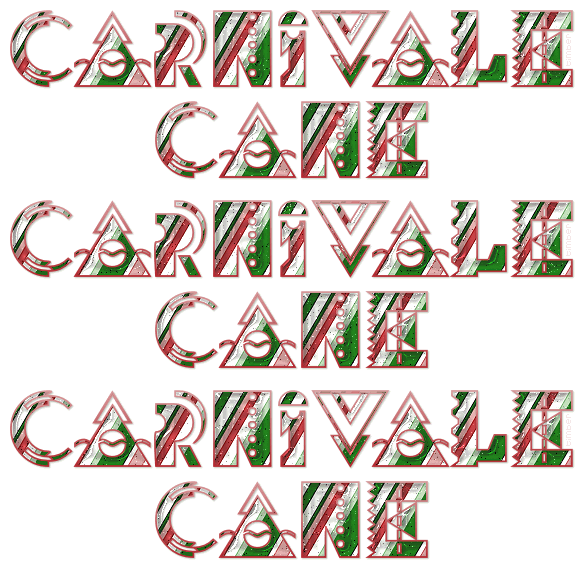
General: Tutorial Challenge: Carnivale Cane Text by timber
Choisir un autre rubrique de messages
Thème précédent  Thème suivant
Réponse Effacer le message  Message 1 de 3 de ce thème 
De: timber  (message original) Envoyé: 14/01/2013 01:37
Click here for the Carnivale Cane Text Tutorial

Click the header to go to the tutorial.

If you have any questions about this tutorial, please ask them on this thread.

And don't forget to show off your results when finished!


Premier  Précédent  2 à 3 de 3  Suivant   Dernier  
Réponse Effacer le message  Message 2 de 3 de ce thème 
De: timber Envoyé: 14/01/2013 02:09
Here's an Autumn-colored variation that I made using this pattern.

For the foreground and background colors, I used color=#F59216 and color=#C65400 and chose the darkest color from the pattern as the drop shadow color.

tbt08timberCarnivaleAutumn.gif

Réponse Effacer le message  Message 3 de 3 de ce thème 
De: timber Envoyé: 14/12/2019 22:01
I have candy canes on the brain, so I thought I'd give this tutorial another play using a different font.  I think the stripe pattern shows nicely in this chunky font, Cooper Black.



For the stroke I opted for a solid color #C0191D (rather than using a gradient), stroke=1.5, blend mode=multiply.

On a layer above the red stroke layer, I added another stroke layer (stroke=1.0) using the pattern.  I also set the blend mode of this layer to multiply.  This extra stroke layer adds just a bit more depth of color variation to the outline.

I glassed the text as per the tutorial.  Then I duplicated the layer and set the blend mode to hard light for a brighter look.

I added noise (gaussian, 50, mono) to the lower text layer (not the hard light layer) on the light pink and light green sections of the text.  To select the text, I used the Magic Wand Tool (add, RGB, tolerance=0, feather=0, anti-alias checked, outside).  I selected the text before applying the coconutice preset and then saved the selection in an alpha channel to use after my text was glassed.

I added a drop shadow (3,3,25,5,black).

The optimization settings I used are median cut and error diffusion.


 
©2026 - Gabitos - Tous droits réservés